Background:
- Occasionally an existing BPAY invoice or statement template may need to be updated in Xero (e.g. new styling, editing changes, etc).
Purpose:
- This document outlines how to edit an existing Branding Theme and updating it with a newer version of the Invoice & Statement DOCX Template into Xero.
Before you start:
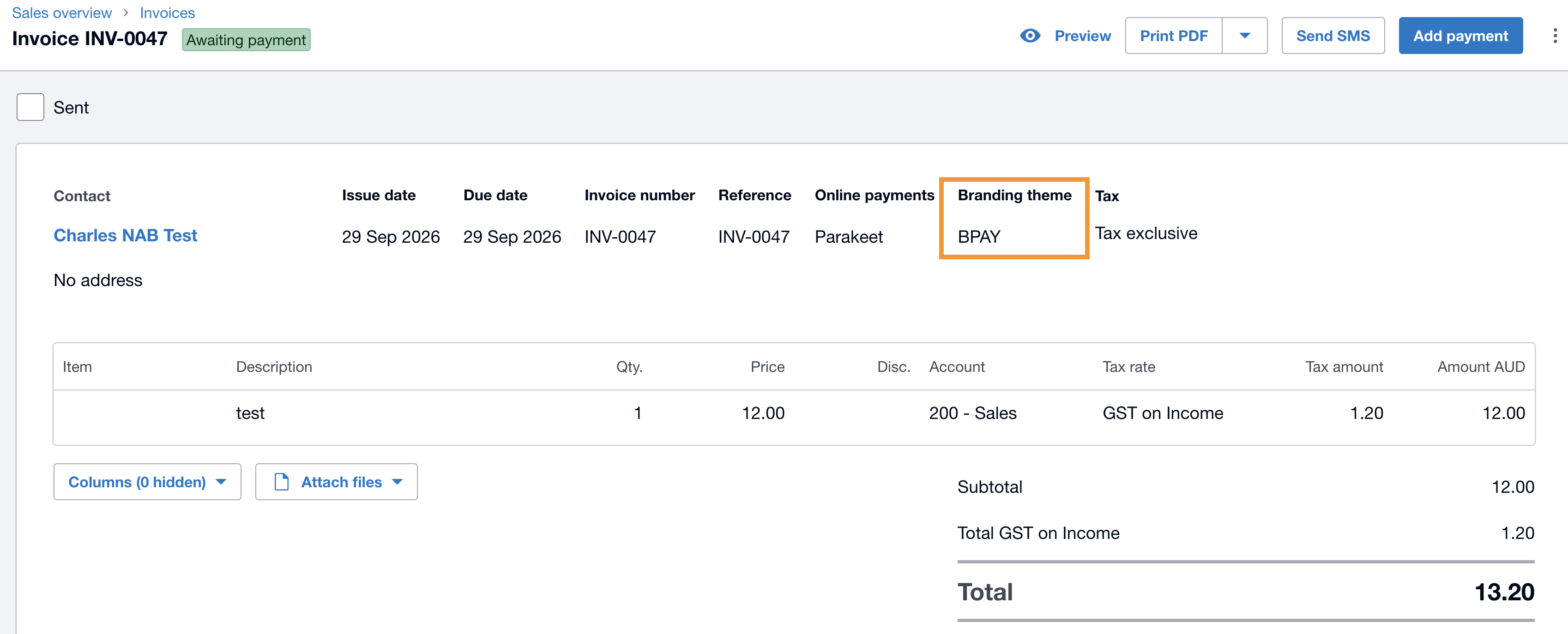
- If you are unsure which 'branding theme' to update, go to the invoice in question and see which branding them is being used.
- In this example, the branding theme used is 'BPAY'
- Once you know this, poceed to step 1 below.
Step 1: Go to Organisation Details
- Go to organisation settings > Invoice Settings
- Find the Branding theme in question
- In this example - we use the 'BPAY' branding theme as an example
- Click 'Upload' Button

Step 2: Replace with updated templates
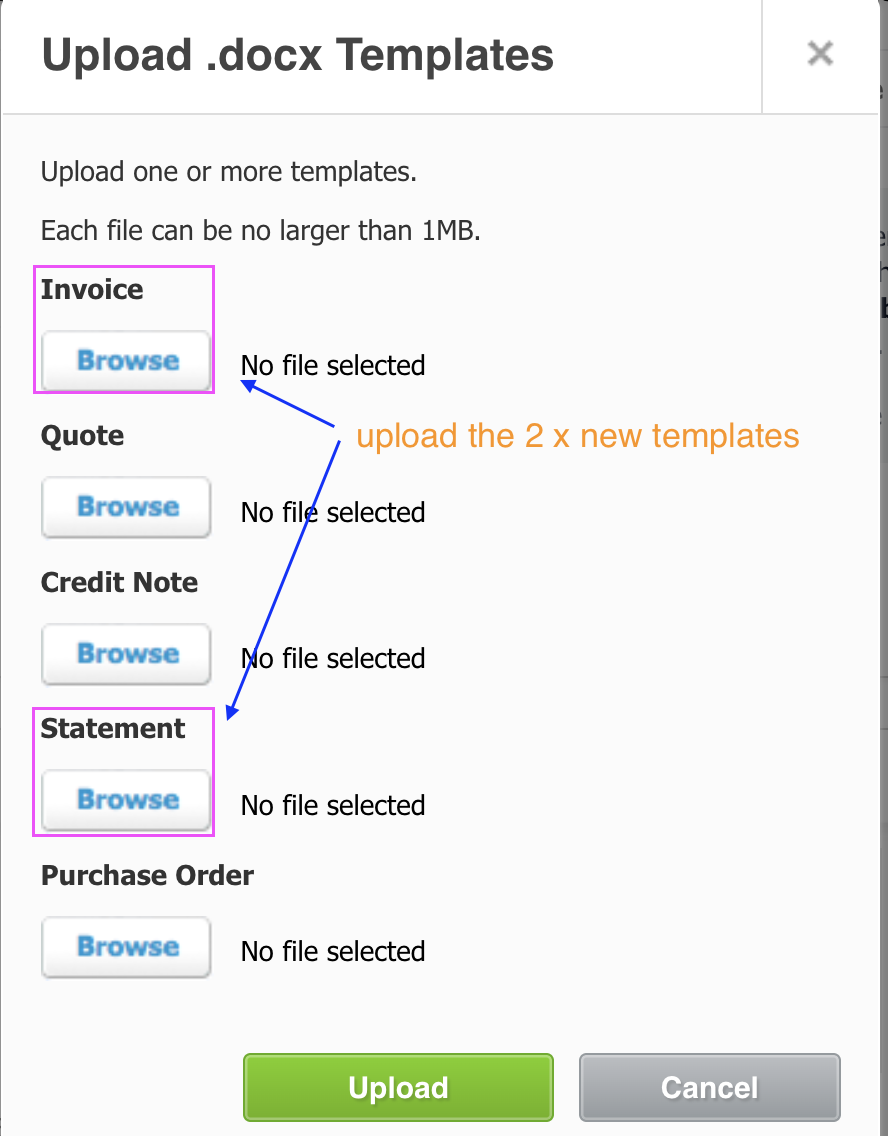
- Upload the newer version of the invoice file “**.docx" as your Invoice template
- Upload the newer version of the statement file “***.docx” as your Statement Template
- Click Upload
Step 3: Verification
- Go back into Invoice and generate an invoice in PDF format or generate a Statement to verify it uploaded successfully
Was this article helpful?
That’s Great!
Thank you for your feedback
Sorry! We couldn't be helpful
Thank you for your feedback
Feedback sent
We appreciate your effort and will try to fix the article