Background:
Parakeet automates the reconciliation of inward BPAY receipts based on the:
- For NAB: BRF (BPAY remittance file) or
- For CBA: CSV file provided by the BPAY provider.
Purpose:
This document outlines how to reconcile invoices that are 'auto-matched' by Parakeet
For transactions that are un-reconciled, please refer to process here.
Auto Reconciliation Steps by Parakeet:
Parakeet
- Parakeet receives the BRF/CSV file from you / BPAY Provider
- Parakeet translates the BRF/CSV file and allocates the BPAY receipts to the customer's outstanding invoices
- Parakeet marks the BPAY receipt to the appropriate invoices in Xero
- Parakeet marks the invoice as paid in Xero
- Parakeet allocates a Payment reference to the invoice
- Invoice marked as "paid" and allocate the invoice to the pre-agreed bank account in Xero
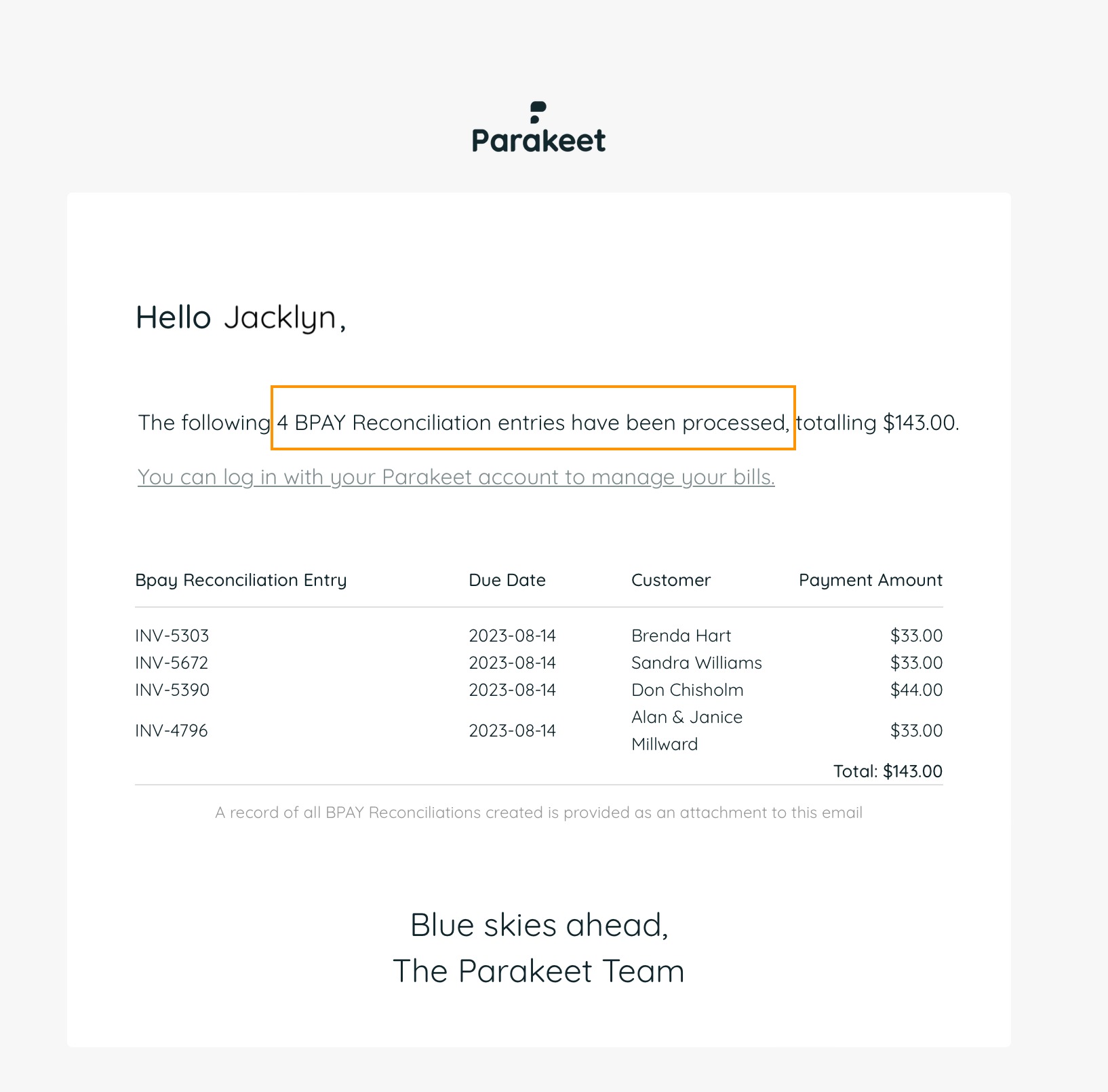
- Email is sent, summarising the payments that has been reconciled (screen shot)
- Parakeet attaches the BRF/CSV as an attachment to the invoice within Xero
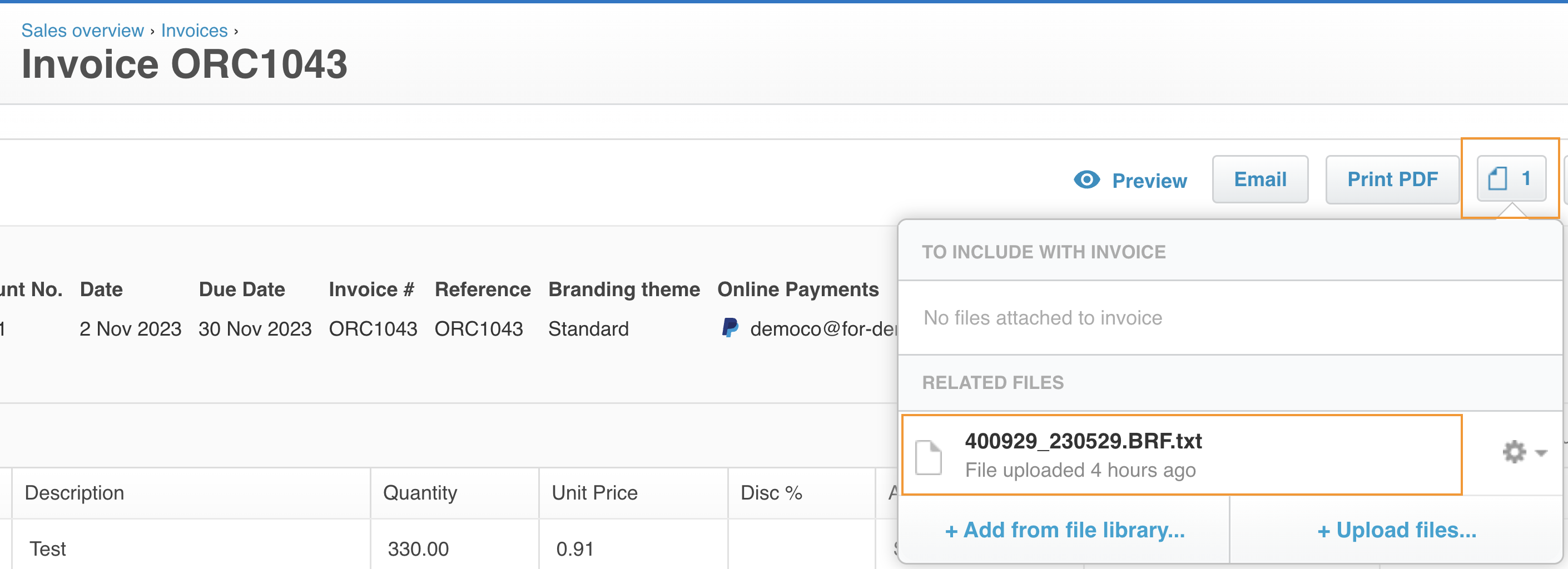
- The Payment reference is recorded in the format of: "CRN | Payment Reference from Payer Bank"

Your Action: Bank statement Reconciliation
CBA / NAB - For Batch BPAY Credits
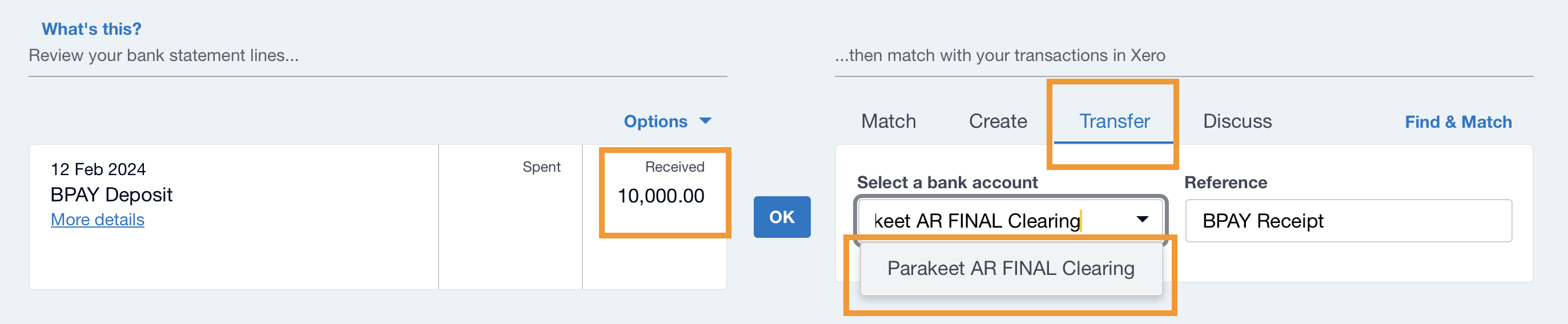
- When the Batch BPAY deposit is received from your BPAY provider, go tor the 'Reconcile' tab in Xero
- Click "Transfer" and select Parakeet AR FINAL Clearing Account.
- Click OK and the invoice is reconciled
- Optional Step - (Recommended)
- Go into the Parakeet AR FINAL Clearing account.
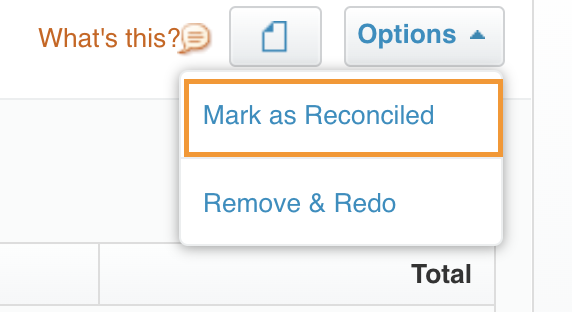
- Mark the transfer as ‘reconciled’ within the Parakeet AR Final Clearing Account by clicking into the options and ‘Mark as reconciled’.
- Note: Parakeet record paid invoices against the Parakeet AR INTERIM Clearing Account and then automatically transfers the bulk amount received to the Parakeet AR FINAL Clearing Account.
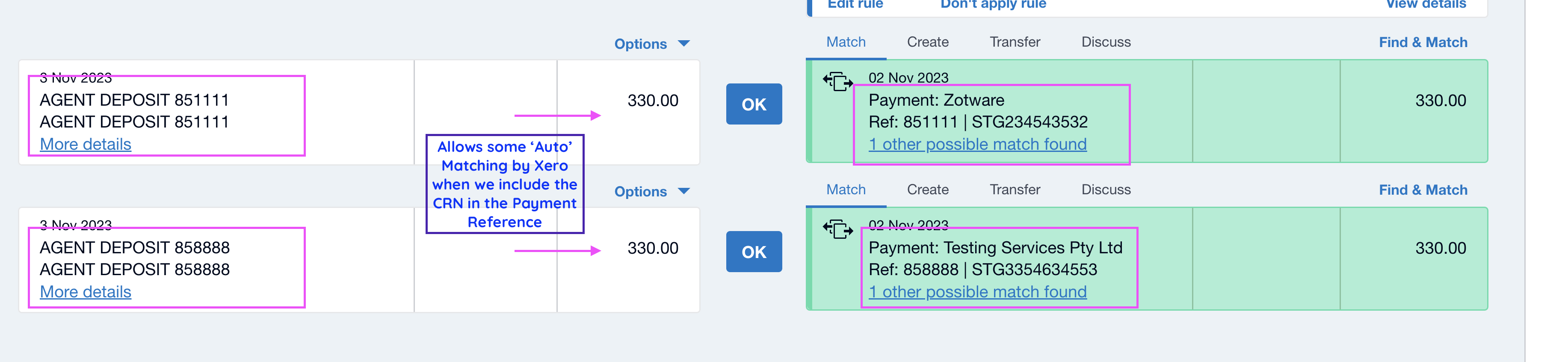
Others - For Individual BPAY credits - (e.g. Macquarie/ANZ/WBC)
- When the individual BPAY deposit is received from the BPAY provider, go tor the 'Reconcile' tab in Xero
- Xero will provide the best match based using the information provided by Parakeet (e.g. CRN | Payment Reference)
- Click OK and the invoice is reconciled
- (Option: User can also create 'bank rules' in Xero to automate some of these task)
Was this article helpful?
That’s Great!
Thank you for your feedback
Sorry! We couldn't be helpful
Thank you for your feedback
Feedback sent
We appreciate your effort and will try to fix the article